I regularly teach the E-Learning Instructional Design Certificate program for the Association for Talent Development (ATD). These days I usually teach online, but back in November I had the opportunity to facilitate the class in Alexandria, Virginia.
While I was traveling from Washington the day prior, I received an email from one of the participants. She shared that she and her colleague would be attending from South Korea and that they struggle a bit with English. They wanted to let me know that their goal was to learn what they could and not to worry if they didn't participate much.
This wasn't the first time I'd taught participants from other countries where English was not their first language and I was really looking forward to having them in class.
The first day of the program, I noticed that they were using a translation application on their computers to take notes and communicate with other participants during group activities. This seemed to be working relatively well for independent activities and group discussions, but not for translating while I was presenting.
At the start of day two, it suddenly hit me. I felt so silly. I had a solution right on my computer!
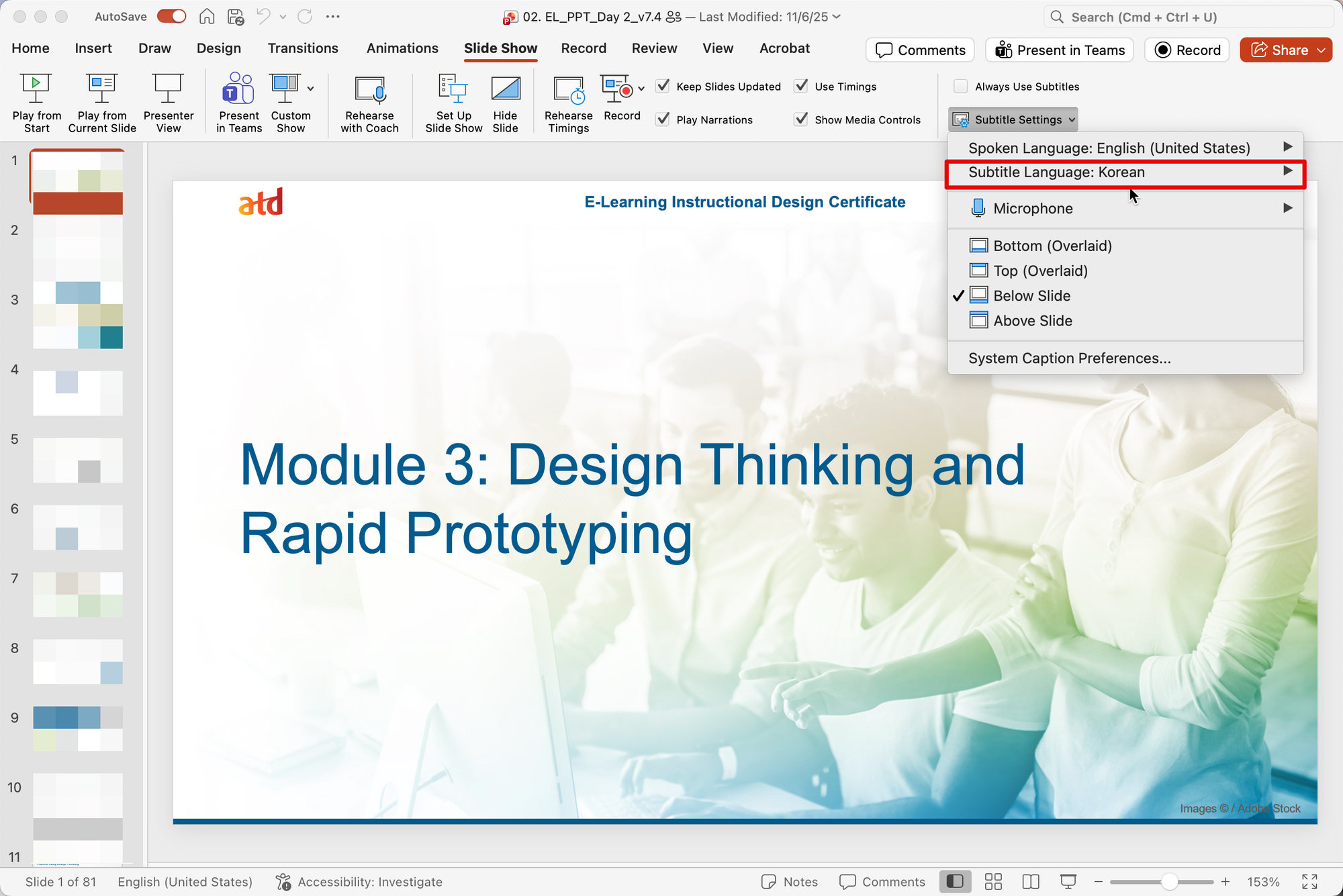
In my PowerPoint presentation, I went to the Slide Show options, Subtitle Settings, and turned the Subtitle Language to Korean.
For the rest of class, I used PowerPoint's subtitles to translate everything I presented by keeping it on-screen – even when I was demonstrating other applications.
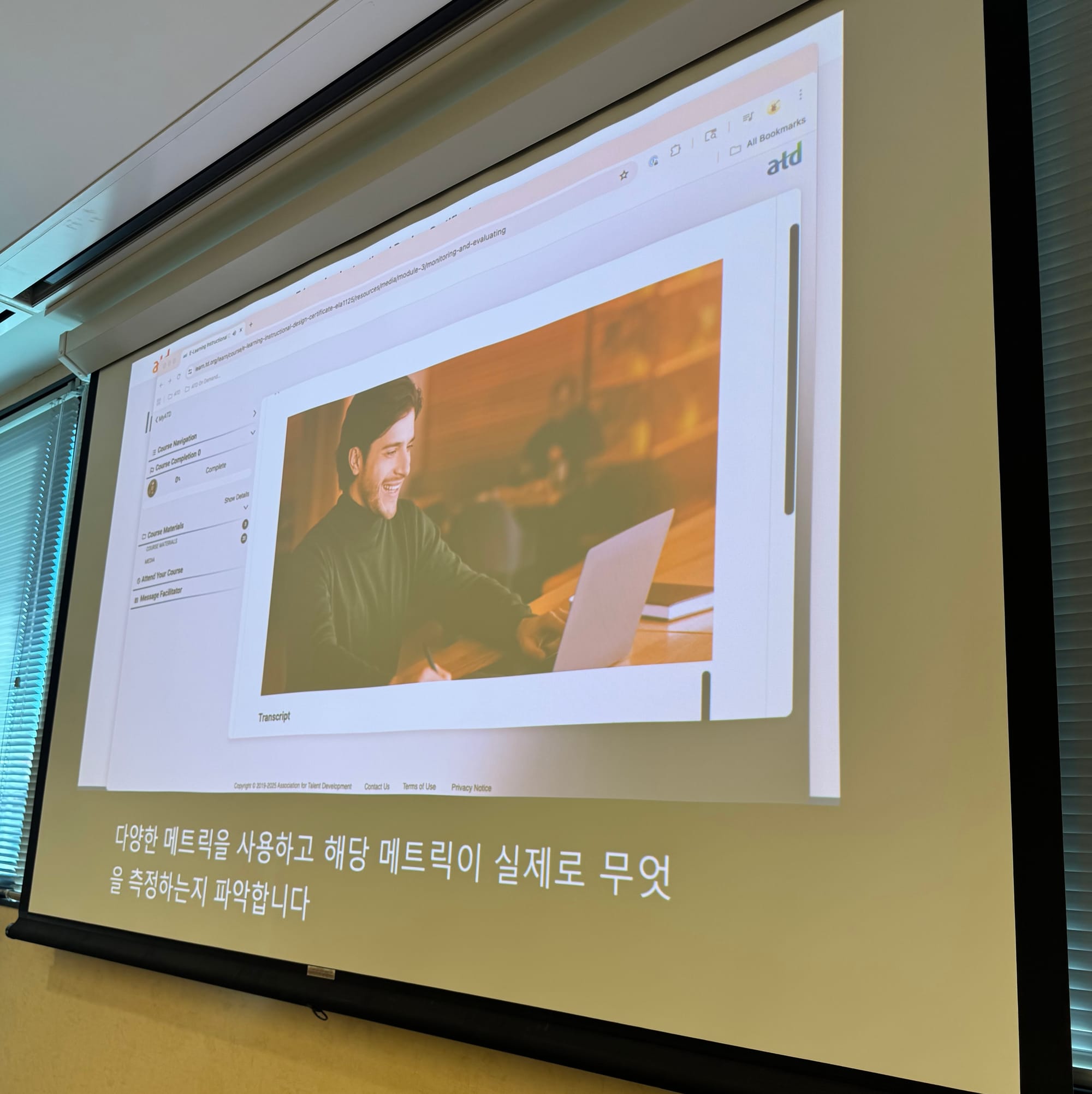
It's helpful to turn on subtitles when presenting in PowerPoint, even if it's simply providing captions in the same language. It may not be perfect, but it's an easy step you can take to improve access!